General
Open Preferences → User interface → General for these settings.
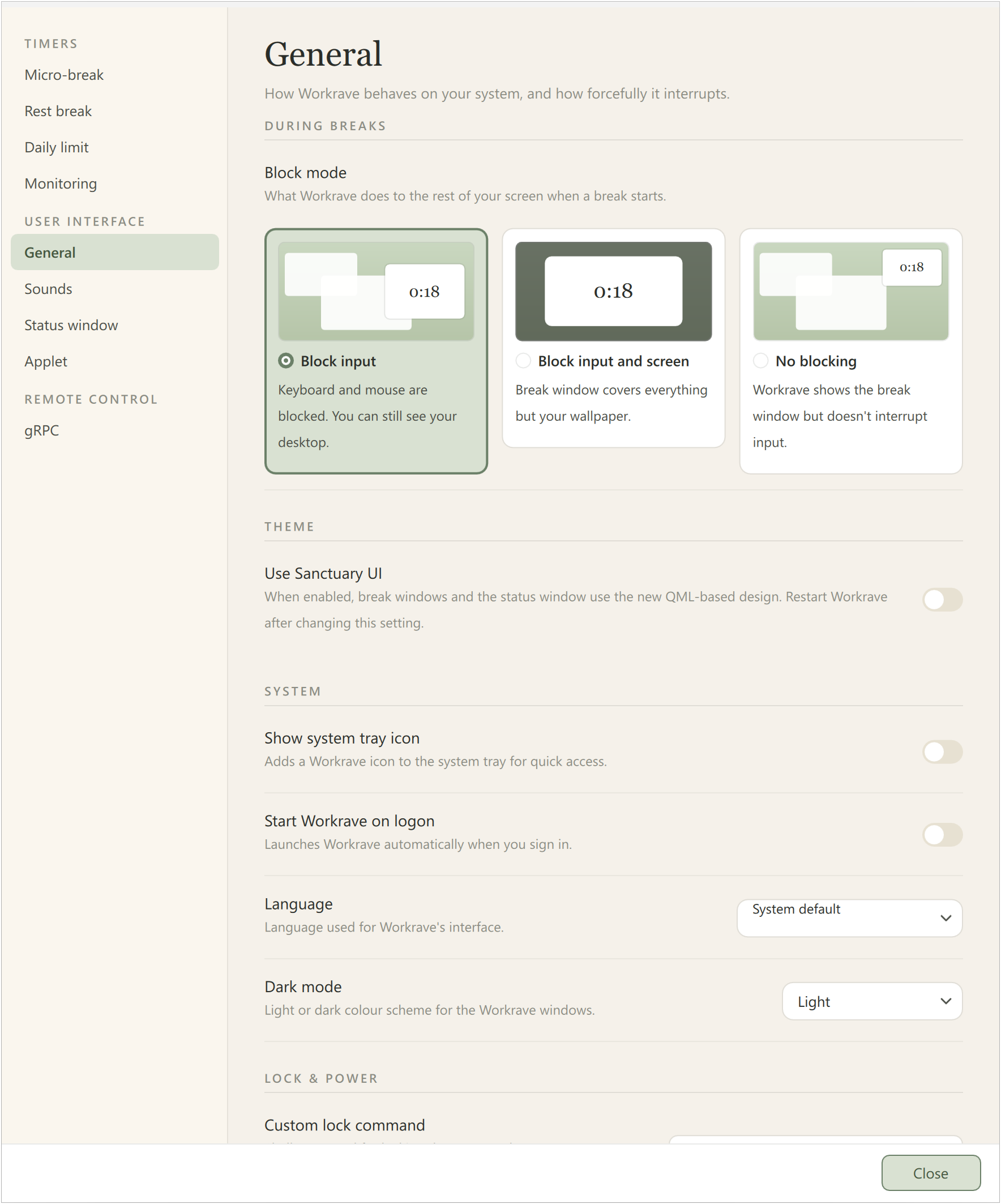
Block mode
This defines how Workrave enforces a break and can be set to one of the following values:
Block input
During a break, keyboard and mouse are blocked. The break window is always on top and cannot be moved. You can still see your desktop and windows.
Block input and screen
During a break, keyboard and mouse are blocked. The break window is always on top and cannot be moved. Your screen will only show the break window and the desktop background image. All other windows are hidden.
No blocking
No blocking of keyboard and mouse during a break. The break window can be moved and is not always on top.
Language
Sets the language of the user interface. You can select a specific language, or choose ‘system default’ to select the default language of your operating system and/or desktop environment.
Start Workrave on logon (Windows only)
If enabled, Workrave will automatically start when you log on.
Use Sanctuary UI
Selects the alternative Qt appearance for break reminders, break windows and exercises. Compare both appearances in break reminders, break windows and exercises. Timer-window layout is selected separately under Status window.
Icon theme
Selects the appearance of Workrave’s icons from the themes included in your installation. This option appears only when alternative icon themes are installed. It is absent from the Windows build shown here.
Dark mode
Choose a light or dark appearance, or follow the system setting.
Show system tray icon
Whether to show an icon in the system tray. Note that some Linux desktop environment do not show tray icons.
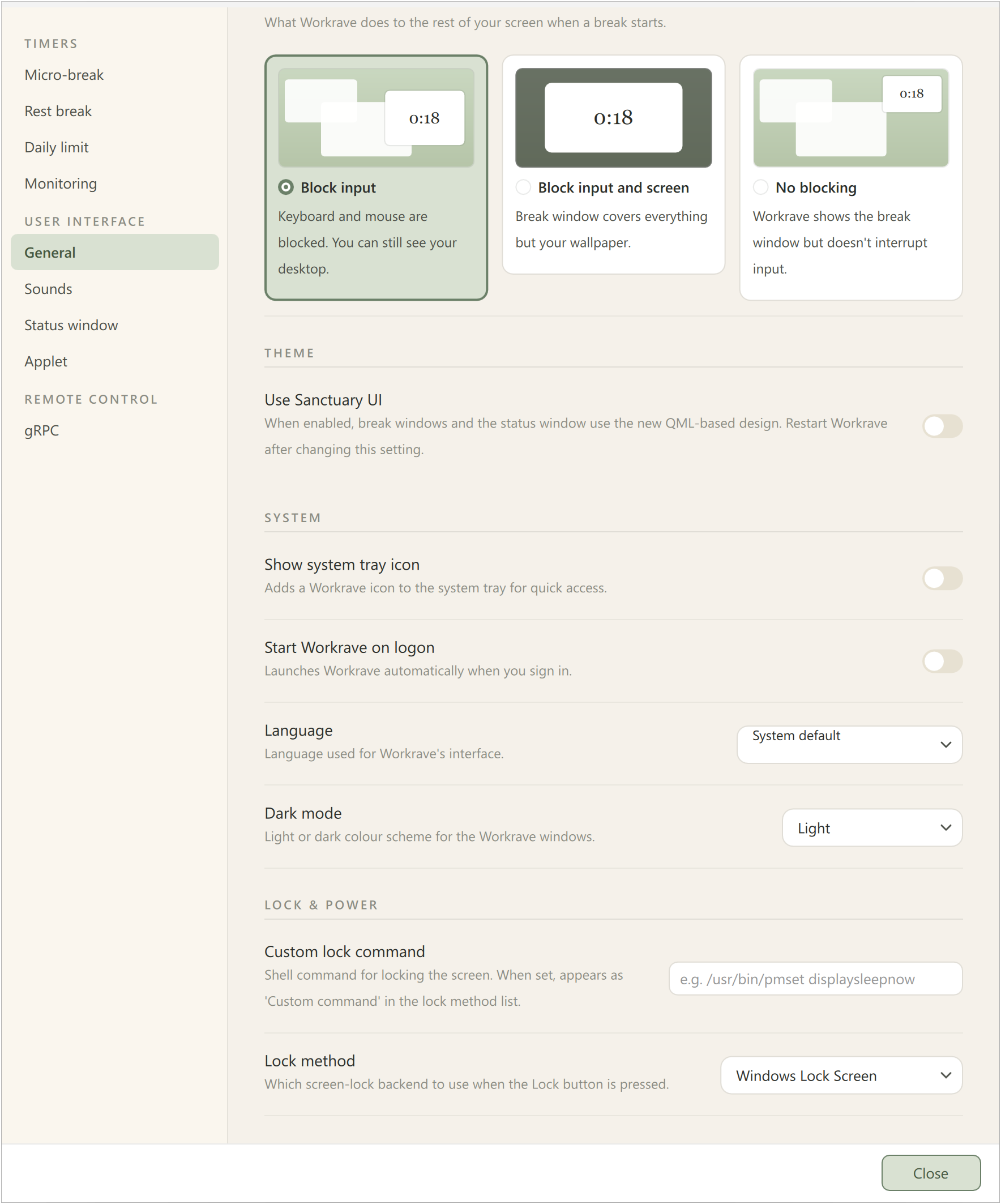
The lower part of General includes the system settings and lock and power actions:
Sound settings have their own Sounds page under User interface.
Status window
Settings for the main timer window.
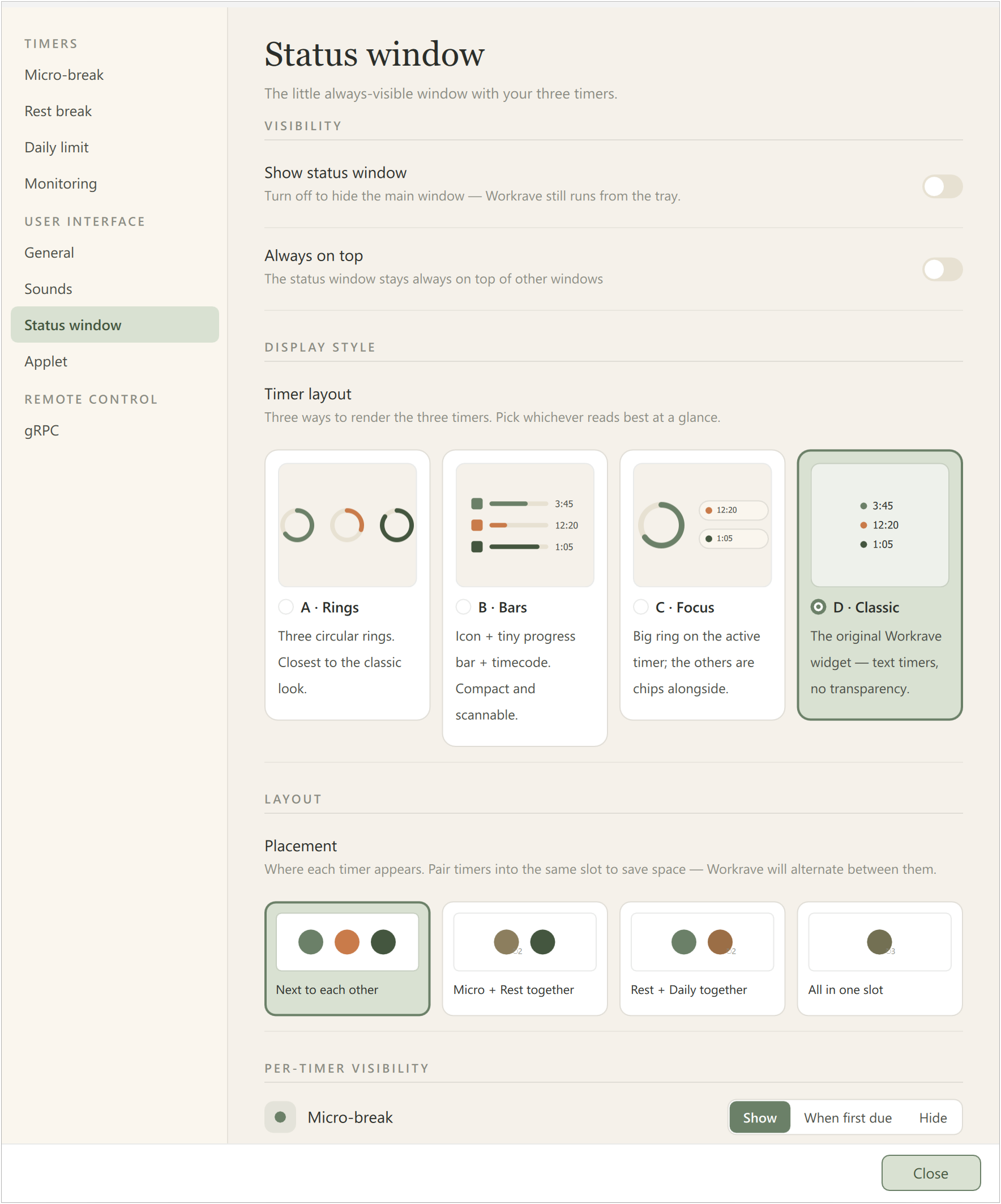
Show status window
Whether the timer window is visible.
The status window stays always on top of other windows
Whether the timer window should be always on top of other windows.
Display style
Choose Rings, Bars, Focus or Classic. See the timer window for examples.
The lower part of the page shows placement and per-timer visibility:
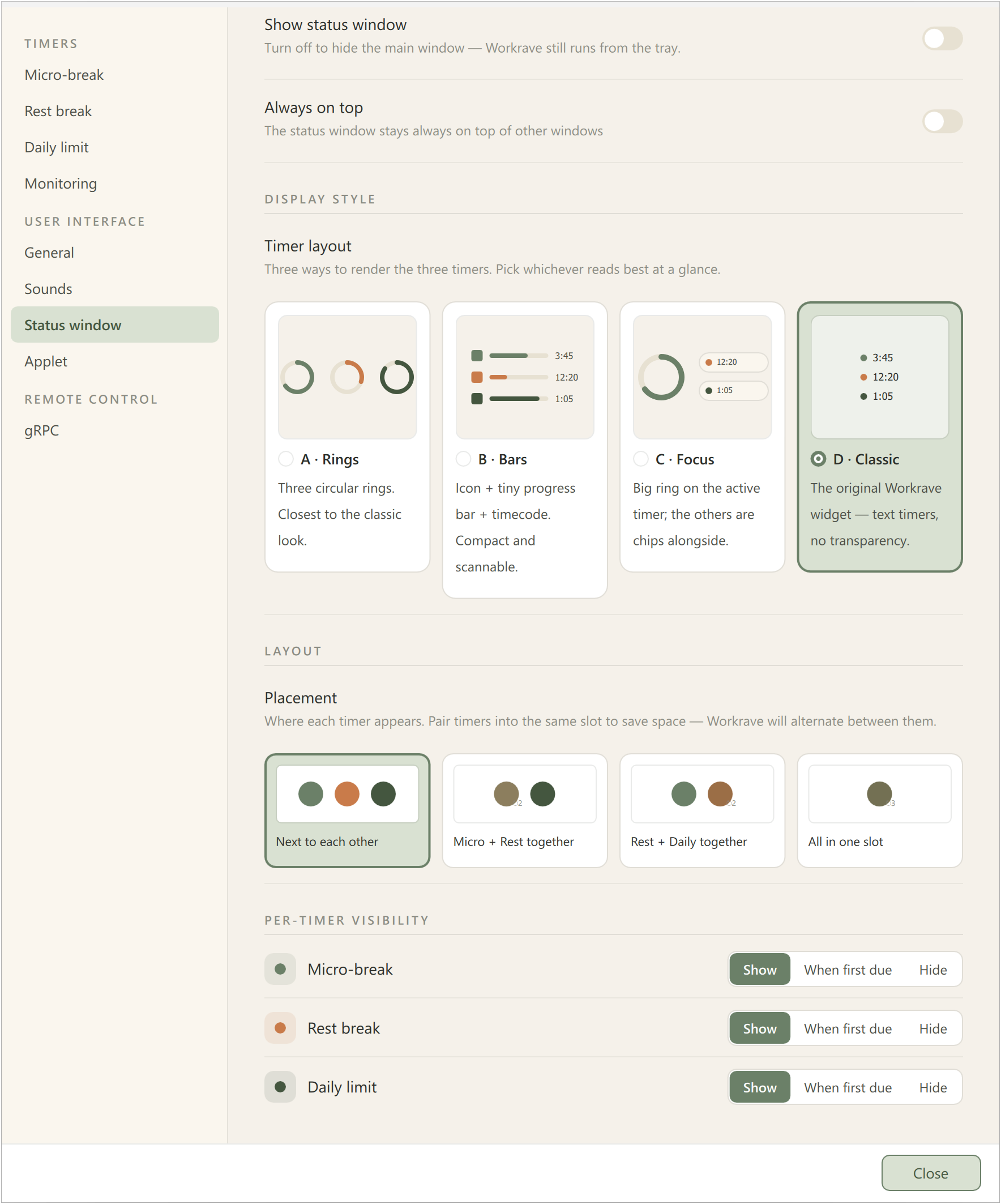
Placement
This configures how timers are shown in the main timer window. The timer window has a maximum of three position where timers can be shown. You can save screen space by placing multiple timers in the same position. Workrave will then alternatingly show the timers on the same position. The following options are available:
- Place timers next to each other
- Place micro-break and rest break in one spot
- Place rest break and daily limit in one spot
- Place all timers in one spot
Cycle time
In case multiple timers are on the same position, Workrave will alternatingly show these timers on that position. This setting configures how long each timer is visible before switching to the next one.
Timers
Specifies for each timer whether it is visible in the timer window. For each timer the following options are available:
Hide
The timer will never be shown in the timer window.
Show
The timer will always be shown in the timer window.
Show only when this timer is first due
The timer will only be shown in the timer window if this break is due before all other break in the same position.
Status applet
Open User interface → Applet for settings for the applet. See the description of the status window settings above.
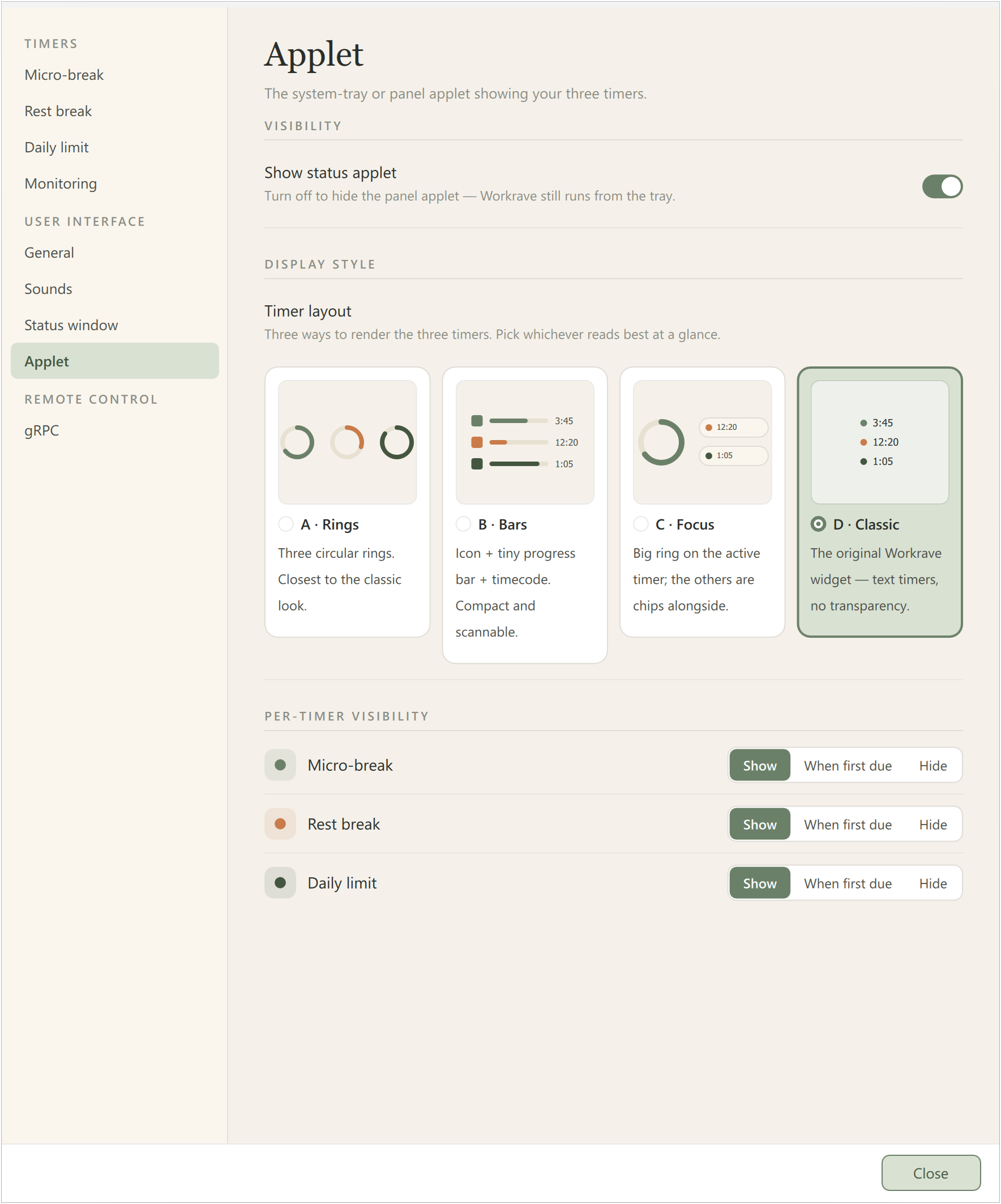
The Windows DeskBand applet was removed in 1.11. The Status applet settings apply to supported Linux panels.
Lock and power actions
Where supported, General also offers Custom lock command, Lock method and Sleep action. These select the actions used by the lock and power buttons on a break window. The available methods depend on your operating system.
Linux builds can also show display-server integration options. Their availability depends on the desktop environment and package; see applets.
Last updated: Oct 12, 2026