In the MATE desktop environment, a Workrave applet that shows all timer values can be added to a panel.
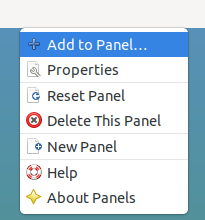
This applet can be added by right clicking in the panel. In the popup menu, select Add to Panel:
In the window that appears, select Workrave and click on the Add button:
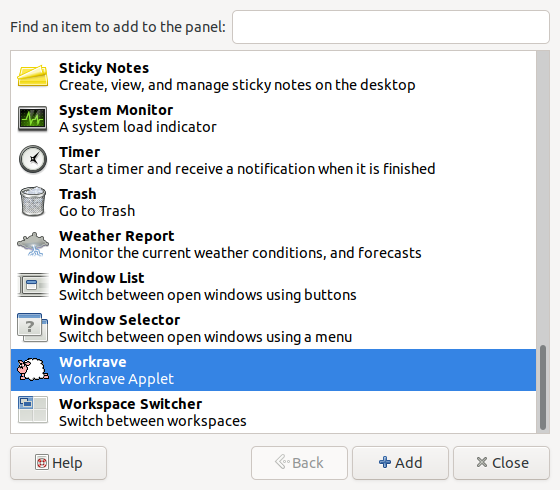
The Workrave applet will now appear in panel.
Note that if you are using Workrave from the Ubuntu Workrave PPA, you have to install the workrave-mate package.
The panel illustration above is retained from the 1.10 guide; its appearance depends on the desktop version.
These desktop-integration instructions and panel illustrations are retained from the earlier guide. Qt support depends on the package and desktop version.
Last updated: Oct 12, 2026